Unity Game User Interface (UGUI): Overview
Unity Game User Interface is one of the easiest methods to implement UI in a game. Other is, instead of Immediate Mode Game Object User Interface (IMGUI). UGUI became one of the first tools I used to create a game prototype. Even though at the time I did not really understand the tool itself. I still managed to get through that learning process up until today. As for IMGUI, I actually rarely used it, since it was usually used by people who had learned it before me. I only found out that IMGUI existed while I was learning multiplayer MIRROR for the Unity game engine. So far, I have been using UGUI in a few of my past game projects, where the UI is easy to access and implement.
Unity Game User Interface(UGUI): RECAP Last Post
In the last post, I wrote about the score system and how to add and implement it in the Unity game project. This system uses a method called a singleton, where the scripts connect to each other. Before that, the scripts of the square game object also need to initialize and declare the variables. I also added a new script called SquareScoreSystem to the player controller. This script runs when the square game object collides with another trigger game object. After the collision, the game system of the square game object adds those scores. I also mentioned that the pickable game object triggers its Collider 2D component. The pickable game object also destroys itself after the collision process.
Unity Game User Interface(UGUI): How to Implement?
First, before you can access UGUI, you must install the package through the Package Manager. In the Window menu, open the subwindow and go to Package Management to find the Package Manager. You will see different lists of installed packages there, and UGUI might not appear yet. Usually, UGUI appears in the package list for your project in the Package Manager, where you only need to update it. If you still do not see it there, switch to the Unity Registry and look for the UGUI entry to confirm whether you installed it or not. The Unity Registry mainly lists official Unity assets, as opposed to assets you install manually from other, unverified sources.

UGUI: Installing The Package
Select the install button on the UGUI so that the package is enable and to used for. The located button and manage usually being replace by install when the package not in the directory. Once you had installed the package, there is another package that prompt you to install the TextMeshProUGUI. That package is an option when you want your game project to have different kind of text that is different than the Legacy Text. TextMeshProUGUI is one of options that make the text customize into the game effectively. Such as resizing that depends on the lengths, changing their font style, and others. I personally used TextMeshProUGUI in last of my most prototype game even though, did not know much about it at first.
Adding Canvas
To add certain text mesh, canvas is one of the game object that needed as parent for the text mesh. Without the canvas the UGUI is not working properly because canvas has different component that help the text mesh scaling and position to different area. Canvas also known as component to the game object which helping the scale screen to different resolution such as 1920x 1080 which usually the recommended resolution today. Canvas Scaler is the component which help with the UI Scale mode of their children in the hierarchy. Some of them can be scale constantly or others. For the Canvas Component, the render mode actually can be change to different kind of mode that help with the need of game development of UI. For that i choose overlay mode that had always stay on the screen size and position of rect transform.

Adding Text Mesh Legacy
After you add a Canvas and configure its components like the Scaler, you can add the text for the user interface. I chose the Text (Legacy) component because it is much easier to explain in this beginner tutorial. When I add the text, Unity automatically parents it to the Canvas game object in the Hierarchy when I have the Canvas selected. This way, the text actually shows in the Game view, and you can manipulate it through the Hierarchy. After you create the text, it usually appears as “New Text” in the Scene and Game views. Unity normally uses this name when it automatically creates a game Text object, even for TextMesh Pro UGUI. You should rename this Text (Legacy) game object to scoreText in the Hierarchy. The scripts will then use scoreText as the variable game object to show text after a collision with the coin game object.
Positioning The Score Text Rect Transform
After renaming the text to scoreText, transform its position by selecting the scoreText RectTransform. In the RectTransform component, select the anchor preset and set the pivot to the top-left corner. This will set the position of the scoreText GameObject at the correct position, but its initial position will be in the top-left corner. To reposition the scoreText GameObject, reset or set its Pos X and Pos Y to 0, which moves it into the top-left corner of the game screen. Additionally, after you set those values, the pivot values also need to be changed. For Pivot X, set it to 0, and for Pivot Y, set it to 1. Now the scoreText is in the top-left corner of the game screen. Furthermore, to make the scoreText visible on the screen, change its color. For that, set the Text component color (Hexadecimal) to FFFFFF, which is white.

Subscribe to get access
Read more of this content when you subscribe today.
Conclusion From Adding UGUI
In conclusion, by adding the UGUI Text (Legacy) component, you are able to customize your screen interface. Not only that, you now know how to use the Canvas and Canvas Scaler components to manipulate the screen at different resolutions. You can also experiment with different settings, such as using the Rect Transform component to position elements at different locations in the scene. The Canvas component is the parent for most UI elements that follow their parent-based components, such as the Canvas Scaler. Their children will automatically reposition to different values depending on the screen resolution of the Canvas GameObject. This is especially suitable for many hardware devices that have different types of screens. Let me know what you think in the comments section.
I drafted this article from my own perspective and used AI to polish the language.
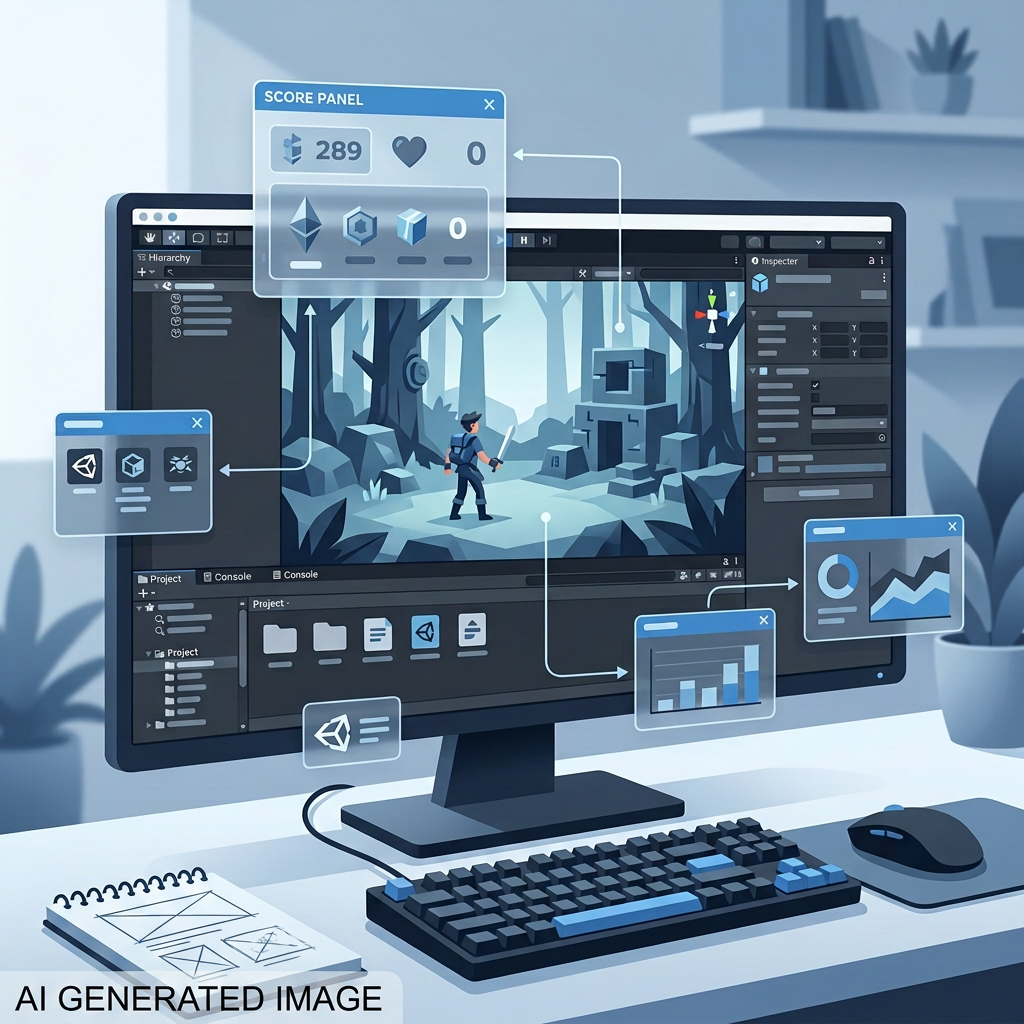
Concept art (created with generative AI, touched up manually).


Leave a Reply